You are not logged in.
Please
Log
In for full access to the web site.
Note that this link will take you to
an external site (
https://accounts.google.com) to authenticate, and then you will be redirected
back to this page.
In this exercise, we will go over the basics of logic that we will be using in a
somewhat abstract way.
Let us look at the most basic unit in digital electronics: the logic gate.
A logic gate is a device which takes in a number of boolean inputs and gives one
boolean output.
For boolean logic, we will be using two values. Typically, these are True and
False, or 1 and 0, or High and Low.
For now, we will only concern ourselves with unary and binary logic gates, i.e.
logic gates with one or two inputs. We will also be briefly looking at a couple
of special cases for logic gates with more inputs.
Let us look at the simplest case first.
Unary Logic Gates
If we have only one input, then that input will have two possible values. Thus,
the possible number of unary logic gates is 2^2 = 4. If we enumerate them, we
get the following tables:
Output = 0
| Input | Output |
|---|
| 0 | 0 |
| 1 | 0 |
Output = Input
| Input | Output |
|---|
| 0 | 0 |
| 1 | 1 |
Output = 1
| Input | Output |
|---|
| 0 | 1 |
| 1 | 1 |
Output = NOT Input
| Input | Output |
|---|
| 0 | 1 |
| 1 | 0 |
Out of these, we can see that two of the gates give an output independent of the
inputs. We will disregard these, and look at the other two. In one of them, the
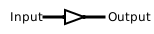
output is equal to the input, and this we will call a buffer, with the following
symbol:
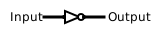
The other interesting one gives an output which is the opposite of the input. In
other words, the output is not the same as the input. Hence, we will call this a
NOT gate or an inverter. A NOT gate has the following symbol:
Binary Logic Gates
Similarly, there are 2^4=16 different logic gates with two inputs:
0
| Input A | Input B | Output |
|---|
| 0 | 0 | 0 |
| 0 | 1 | 0 |
| 1 | 0 | 0 |
| 1 | 1 | 0 |
A AND B
| Input A | Input B | Output |
|---|
| 0 | 0 | 0 |
| 0 | 1 | 0 |
| 1 | 0 | 0 |
| 1 | 1 | 1 |
A AND NOT B
| Input A | Input B | Output |
|---|
| 0 | 0 | 0 |
| 0 | 1 | 0 |
| 1 | 0 | 1 |
| 1 | 1 | 0 |
A
| Input A | Input B | Output |
|---|
| 0 | 0 | 0 |
| 0 | 1 | 0 |
| 1 | 0 | 1 |
| 1 | 1 | 1 |
NOT A AND B
| Input A | Input B | Output |
|---|
| 0 | 0 | 0 |
| 0 | 1 | 1 |
| 1 | 0 | 0 |
| 1 | 1 | 0 |
B
| Input A | Input B | Output |
|---|
| 0 | 0 | 0 |
| 0 | 1 | 1 |
| 1 | 0 | 0 |
| 1 | 1 | 1 |
A XOR B
| Input A | Input B | Output |
|---|
| 0 | 0 | 0 |
| 0 | 1 | 1 |
| 1 | 0 | 1 |
| 1 | 1 | 0 |
A OR B
| Input A | Input B | Output |
|---|
| 0 | 0 | 0 |
| 0 | 1 | 1 |
| 1 | 0 | 1 |
| 1 | 1 | 1 |
A NOR B
| Input A | Input B | Output |
|---|
| 0 | 0 | 1 |
| 0 | 1 | 0 |
| 1 | 0 | 0 |
| 1 | 1 | 0 |
A XNOR B
| Input A | Input B | Output |
|---|
| 0 | 0 | 1 |
| 0 | 1 | 0 |
| 1 | 0 | 0 |
| 1 | 1 | 1 |
NOT B
| Input A | Input B | Output |
|---|
| 0 | 0 | 1 |
| 0 | 1 | 0 |
| 1 | 0 | 1 |
| 1 | 1 | 0 |
A OR NOT B
| Input A | Input B | Output |
|---|
| 0 | 0 | 1 |
| 0 | 1 | 0 |
| 1 | 0 | 1 |
| 1 | 1 | 1 |
NOT A
| Input A | Input B | Output |
|---|
| 0 | 0 | 1 |
| 0 | 1 | 1 |
| 1 | 0 | 0 |
| 1 | 1 | 0 |
NOT A OR B
| Input A | Input B | Output |
|---|
| 0 | 0 | 1 |
| 0 | 1 | 1 |
| 1 | 0 | 0 |
| 1 | 1 | 1 |
A NAND B
| Input A | Input B | Output |
|---|
| 0 | 0 | 1 |
| 0 | 1 | 1 |
| 1 | 0 | 1 |
| 1 | 1 | 0 |
1
| Input A | Input B | Output |
|---|
| 0 | 0 | 1 |
| 0 | 1 | 1 |
| 1 | 0 | 1 |
| 1 | 1 | 1 |
In this table, it is clear that the grey logic gates are equivalent to the unary
gates. We can also see that the light blue and purple pairs each contain just
one gate, but we get two from flipping the order of the inputs.
We can also see that the red and green gates are simply inverted versions of
each other; You can obtain the red gates by placing a NOT gate at the output of
the green gates. Similarly, the purple and light blue gates are inverses of each
other.
Thus, we can narrow these gates all down to four gates and their inverses, for a
total of eight unique gates.
A AND B
| Input A | Input B | Output |
|---|
| 0 | 0 | 0 |
| 0 | 1 | 0 |
| 1 | 0 | 0 |
| 1 | 1 | 1 |
A OR B
| Input A | Input B | Output |
|---|
| 0 | 0 | 0 |
| 0 | 1 | 1 |
| 1 | 0 | 1 |
| 1 | 1 | 1 |
A XOR B
| Input A | Input B | Output |
|---|
| 0 | 0 | 0 |
| 0 | 1 | 1 |
| 1 | 0 | 1 |
| 1 | 1 | 0 |
NOT A OR B
| Input A | Input B | Output |
|---|
| 0 | 0 | 1 |
| 0 | 1 | 1 |
| 1 | 0 | 0 |
| 1 | 1 | 1 |
A NAND B
| Input A | Input B | Output |
|---|
| 0 | 0 | 1 |
| 0 | 1 | 1 |
| 1 | 0 | 1 |
| 1 | 1 | 0 |
A NOR B
| Input A | Input B | Output |
|---|
| 0 | 0 | 1 |
| 0 | 1 | 0 |
| 1 | 0 | 0 |
| 1 | 1 | 0 |
A XNOR B
| Input A | Input B | Output |
|---|
| 0 | 0 | 1 |
| 0 | 1 | 0 |
| 1 | 0 | 0 |
| 1 | 1 | 1 |
A AND NOT B
| Input A | Input B | Output |
|---|
| 0 | 0 | 0 |
| 0 | 1 | 0 |
| 1 | 0 | 1 |
| 1 | 1 | 0 |
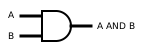
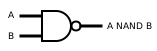
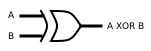
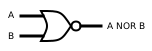
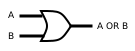
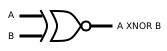
The light blue and purple gates will not be used in this course, and they do not
have a commonly used symbol. The green and red ones have the following symbols:
Universality of NAND and NOR gates
Two of the above gates can be used to generate every possible logic gate. These
are the universal logic gates—the NAND and NOR gates.
About the names of logic gates
The names of logic gates are derived from the conditions under which the outputs
are 1
- AND: The output is 1 if both inputs are 1. In other words, for inputs
A and B, the output is 1 if and only if A is 1 and B is 1.
- OR: The output is 1 if either of the inputs are 1; for A and B, the
output is 1 if and only if either A or B or both are 1.
- XOR: This is an abbreviation of exclusive or. The 'exclusive' refers to
the fact that for this gate, the condition of both A and B being 1 is excluded
from the definition. For this gate, the output is 1 if A is 1 or B is 1,
but not if both are 1. This is also sometimes denoted by \not \equiv, since
the output is 1 if A and B are not identical.
- NAND and NOR: These are abbreviations of not and and not or
respectively, since they are formed by placing a NOT gate at the output of each
one.
- XNOR: This is formed similarly to the previous two (exclusive not or).
This is the same as a NOT gate placed at the output of an XOR gate. This gate is
also denoted by \equiv, since the output is 1 if inputs A and B are equal.
In the next exercise, you will learn about binary numbers and their significance in digital circuits with interesting activities.